Your first audit.
Your first verified fix.
HyperSEO 0.6.0 runs on your computer for one local operator. Start with the included test website, then connect the websites and reports you manage.
1. Download and install
Open your download library with the email used for your purchase or All Access membership. Download the source ZIP and its SHA-256 checksum. On macOS/Linux, run shasum -a 256 hyperseo-0.6.0.zip; on Windows use Get-FileHash hyperseo-0.6.0.zip -Algorithm SHA256. Compare the full hash with the checksum file.
Extract into a new, writable folder. Install Node.js 22.13 or newer with npm. Open a terminal in the extracted folder and run:
npm run setup
npm start
Setup installs the locked dependencies and Chromium for rendered-page checks, runs checks and builds the app. It creates .env.local only when missing. Keep the terminal open, then visit http://127.0.0.1:3226.
2. Practice on the test website
Choose Fieldwork Studio, labeled Local test. Open Opportunities, select a title or description finding and choose Review fix. Compare the original and draft, edit the wording, and choose Apply. Open the local page to see the HTML change. Use Restore in the change history to return the original value.
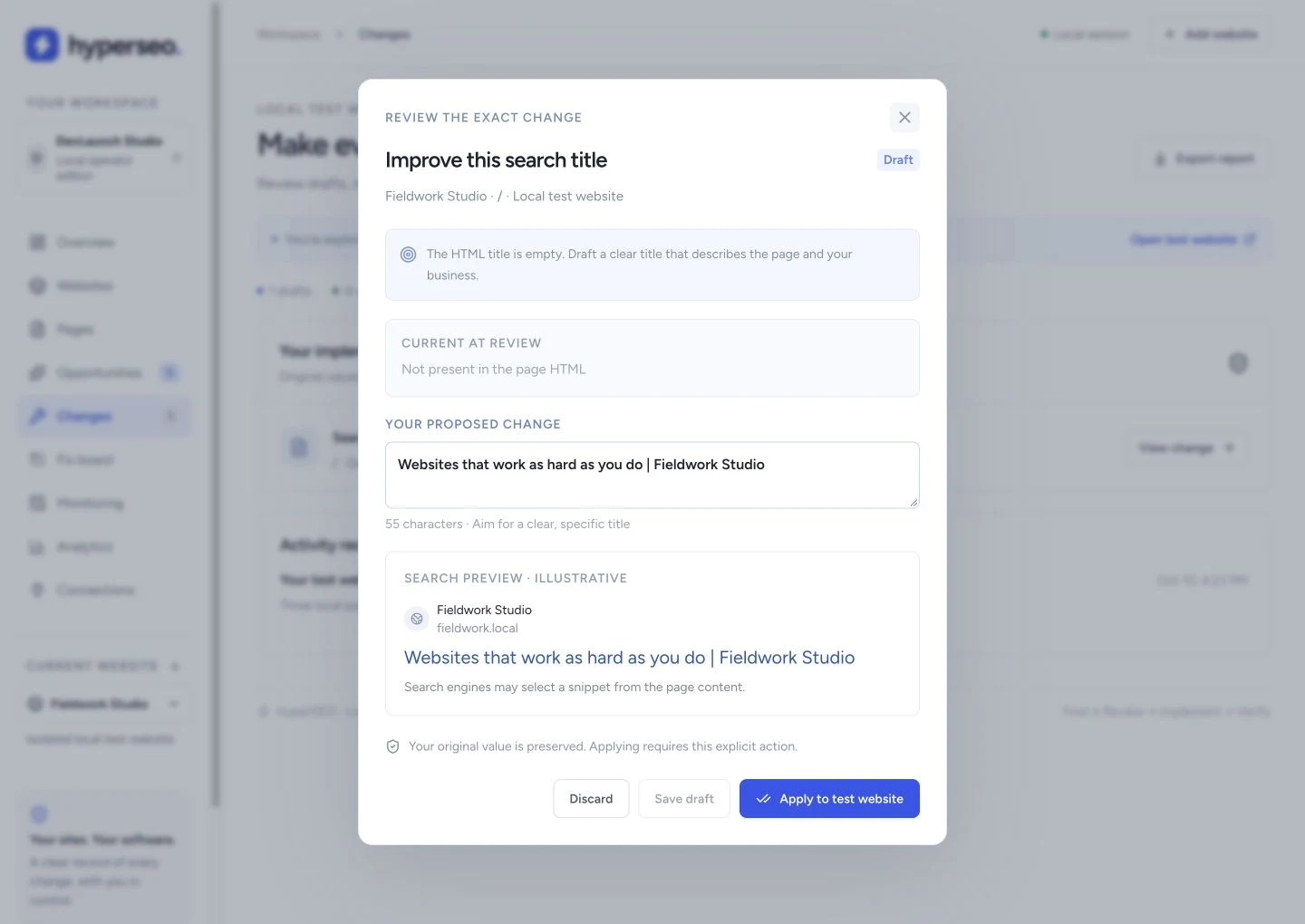
This practice site is isolated. It does not generate traffic data or change an external website.
3. Get a report from a URL
Open URL report and paste a public domain or URL. HyperSEO samples up to 25 HTML pages, prepares an executive summary and prioritizes five actions. Rendered inspection compares up to three pages. Google mobile Lighthouse testing is optional and requires URL-sharing approval.
Add your agency name, color and logo, then download the branded HTML report or use the print view. HTML and rendered evidence stay separate; a missing optional check is labelled. For existing installations, npm run setup:browser installs matching Chromium.
Add your website and connected evidence
Use Add website for a public website you’re authorized to inspect. Run audit and review the crawl notes, sample and page findings. The crawler checks same-site public HTML and respects robots rules.
In Connections, configure your own Google OAuth application, using the redirect URL shown in HyperSEO. Authorize the account that can access your Search Console and GA4 properties, select the matching properties, and sync. Alternatively, import supported CSV reports in Analytics. Follow the source/date/coverage labels when interpreting them.
4. Plan and improve your content
Open Action plan for prioritized work and Keywords for query opportunities. Use Intelligence for traffic comparisons and a saved four-week plan. In Content, refresh page evidence, prepare internal links or briefs, and save your Brand Voice.
Content Polish uses your own OpenAI API key and asks permission before sending the selected paragraph and voice settings. Compare the original and rewrite, check names, numbers and claims, then approve the draft. Draft approval prepares the next step; it does not publish.
5. Connect your publishing platform
WordPress: install and activate extras/hyperseo-connector.zip, included in the source package. In Connections, set the site URL, administrator username and a dedicated application password. The connector supports compatible titles, descriptions and reviewed content/internal-link changes. Test on your staging website first.
Custom Next.js: follow docs/CUSTOM_PUBLISHING.md. The templates publish registered managed HTML. Use the SQLite adapter on a persistent Node host, or connectors/nextjs-vercel with your own Neon PostgreSQL database on Vercel. Integrate the adapter into your site and verify its authentication and rendering before connecting HyperSEO. The templates do not automatically edit arbitrary JSX or MDX files.
Review the exact publishing preview and choose Apply. Check the resulting HTML and keep the original receipt for guarded restore. For other CMSs or source formats, download the reviewed change package and integrate it manually.
6. Choose your monitoring and reporting
AI Visibility keeps saved prompts, audiences, brands, answers and citations together. API samples and manually captured consumer-app answers are separate evidence. Growth monitoring supports optional OpenAI, Anthropic and Gemini API samples, regional organic search samples through DataForSEO, Google indexed-copy inspections and GA4 AI-referral reports. Configure only the providers you want using your own accounts and keys.
New paid schedules start paused. Review the input, provider, frequency, call cap and planning allowance before enabling one. Provider costs are separate; an allowance is not a guarantee of your bill. See docs/GROWTH_MONITORING.md in your package. Use Results to compare reporting periods and Client reports to download a branded offline HTML report.
Research and work with your agents
Keyword Explorer, Competitor Explorer and Backlink Explorer use your own DataForSEO account. Each paid request needs approval; captures retain their source and can be filtered, exported or turned into editorial tasks. Provider metrics are estimates, not your first-party analytics.
In AEO & agents, add your own Firecrawl key for web search, page excerpts and URL discovery. Create a scoped connection for Claude Code or Codex, choose the sites and saved research it may read, and copy the one-time MCP configuration into your private agent settings. Agents can propose paid research and submit cited drafts; they cannot approve spending or publish changes. Revoke or renew connections in HyperSEO.
Explorer guide · Firecrawl and agent guide
7. Keep the worker available
npm start runs both the web app and its local worker. Run diagnostics in another terminal:
npm run doctor -- --running
Keep the computer and app running for scheduled checks. Paid requests are never automatically retried. Live publishing always requires explicit approval. Credentials stay encrypted in private local storage. Back up the stopped database and its matching credential key together.
Installing with a coding agent?
The archive includes AGENTS.md, CLAUDE.md, GEMINI.md, AGENT_SETUP.md, setup and troubleshooting guides. Open the extracted folder in your coding tool and use this prompt:
Read START_HERE.md, AGENTS.md and AGENT_SETUP.md. Install this version of HyperSEO using SETUP.md. Preserve the lockfile, existing configuration, private data and its matching key. Run setup, start both local processes and check doctor. Verify the workflow on the local test website. Report local checks separately from live provider and publishing checks. Keep credentials out of chat.
Agent setup · Full installation guide · Agent project rules · Troubleshooting
Extending your installation
Customize the source with your preferred coding tools. Local mode stays on your computer. For team and client access, follow docs/AGENCY.md in the ZIP: configure your own dedicated account backend, verified-email sender, HTTPS and persistent Node web/worker hosting with private storage. Existing installations should read docs/UPGRADE-0.6.md before explicitly importing local data into an empty agency workspace. For upgrades, preserve your customizations and private data; compare versions in a new folder.